Do not create multi-accounts, you will be blocked!
GUI / UI
105 files
-
- Free
- 11 Downloads
-
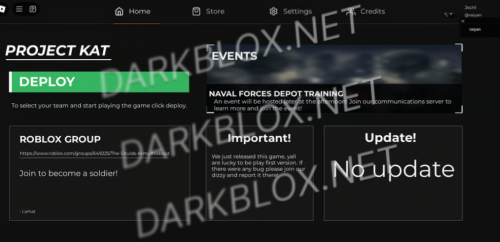
I bought it from Destiny Tech, but was too lazy to set it up. It's perfect for army-related groups.
- Free
- 710 Downloads
- 1 Comments
-
- Free
- 115 Downloads
-
- Free
- 329 Downloads
-
- Free
- 340 Downloads
-
- Free
- 144 Downloads
-
A overhead UI system which shows users as to if the user is apart of the development team or moderation team. Comes with an amazing setup guide for users and is very easy to setup.Â
- Free
- 1988 Downloads
- 1 Comments
-
- Free
- 423 Downloads
-
- Free
- 106 Downloads
-
This is the
RetroStudio website dev place.
It may work if you allow Datastore and upload it. It's RetroStudios' OG Roblox website GUI, which is pretty neat since my account is from 2010.
- Free
- 69 Downloads
-
- Free
- 63 Downloads
-
SCP Facility Time Monitor — A fully functional real-time clock and phase display for SCP-style games.
Features:
Live time display (HH:MM format with AM/PM)
Dynamic phase changes (Dawn, Morning, Afternoon, Evening, Night, etc.)
Smooth color transitions based on time
Glitch effects for immersion
Pulsing status light
Progress bar showing day/night cycle
How to use:
Insert into StarterGui or a ScreenGui in your game
Works with Lighting.ClockTime or server-synced time
Customizable colors and phase names
No additional setup required — just insert and it works.
- Free
- 91 Downloads
-
SCP Team Selector — dark glass-style team selection interface.
Model includes:
Main GUI with glass design
Server script for team handling
Teams
Open/close button with smooth animations
Player counters & current team display
How to install:
Insert model into ServerScriptService
Ungroup the model
Move each folder to its correct location:
ServerScriptService → move to ServerScriptService
StarterGUI → move to StarterGui
Teams → move to Teams
Everything works automatically
Features:
Modern glassmorphism design
Dark red / dark theme
Fully animated (hover, open, close)
Live player count updates
Shows current player team
Just insert, ungroup, drag to correct places — and you're done.
- Free
- 234 Downloads
- 1 Comments
-
Detailed UI assets that you can use in your obby game. Also got a map which you can use for your obby map. Enjoy🌟
- Free
- 198 Downloads
-
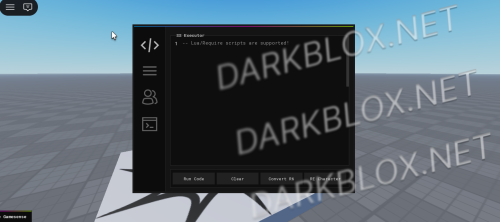
server side excutor (not mine ) if something is wrong or need help text in comment
- Free
- 58 Downloads
- 4 Comments
-
- Free
- 524 Downloads
-
Key Features
Settings Feature: Personalise gameplay settings seamlessly.
Shop Feature: A storefront UI ready to house your game’s premium items or power-ups.
Team Changer: Simplify team selections with a dedicated UI segment.
Clean Design: An uncluttered, intuitive layout that ensures players focus on the game.
- Free
- 761 Downloads
- 1 Comments
-
- Free
- 61 Downloads
-
- Free
- 30 Downloads
-
This is not my file and also roblox ai scripted it i don't remember who made it but it is on darkblox
- Free
- 308 Downloads
- 4 Comments
-
- Free
- 520 Downloads
- 2 Comments
-
This is the RDS Team Changer, Shop and Settings GUI. Yall can use this if you want.
- Free
- 323 Downloads
- 1 Comments
-
- Free
- 232 Downloads








.thumb.webp.84056aa75468a2b0db130652161c4ffd.webp)


Featured Files
-
- 597 Downloads
- 2 Comments
-
- 468 Downloads
- 15 Comments
-
- 3141 Downloads
- 93 Comments
-
- 1146 Downloads
- 1 Comments
-
- 5113 Downloads
- 101 Comments


.thumb.jpg.a237428f121dee15540ca43c17e88147.jpg)

.thumb.webp.aa2e1d8010bcf13356419c4b2a16c392.webp)



File Reviews
-
scp anomaly breach 2
good file but opening doors dont work and scps are buggy. 3/10
-
CHAIN Survival dev place
PEAK!!!!
-
Untitled wheelie game
Санек, это ахуенно
-
Full Examination
Hey even tho its not full, but it is the newest version and heck even free hostile rigs


.thumb.png.6aaf2cfc8b4c4f12e53fddc1f0256119.png)
.thumb.jpg.651e5690dcdce878a6bd1ee80907893c.jpg)