.webp.ecef15350491dc7d94005ae37e8adc6f.webp)
.webp.bb5edd89ed64be6f20fa296866840ac2.webp)
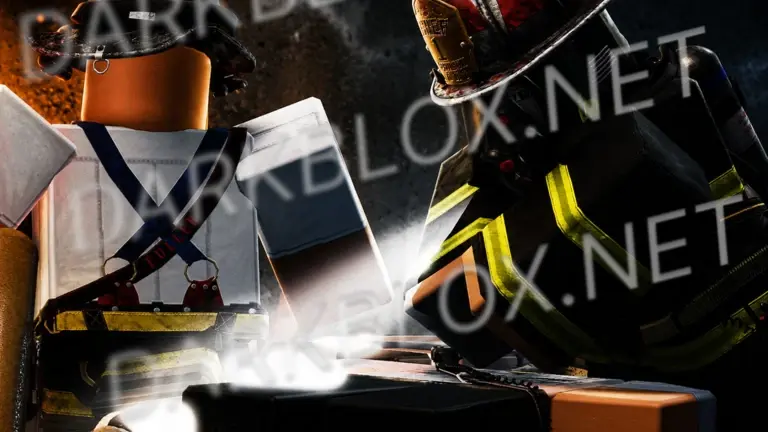
Tribeca, NYC [Save Instanced]
Heads up! I did NOT create this game, I only uploaded it to DarkBlox for others to be able to have access to and use the file. All credits belong to the original owners, creators, and developers of the game.
Enjoy and happy developing! 😃
You can make a Save Instance request by creating a Support Ticket within the [VS] Visionary Studios Discord Server (https://discord.gg/D3GusB9qWK).
Disclaimers:
I am not responsible for the quality of the game.
I am not responsible for any bugs or missing assets, models, scripts, etc.
I am not required to provide any additional support on how to make the game work. (BUT I am always willing to TRY my best to help you with any questions/issues you may have via DarkBlox Messages or Discord (@austinparks))
Before You Play:
For the best chance of the game working, please ensure the following:
You have published the game to Roblox.
You have enabled HTTP Requests.
You have enabled Studio Access to API services.
Additional Notes:
Based on the game, you may also need to do the following to ensure it works properly:
Spoof or replace any missing animations.
Replace any missing/deleted IDs for assets, animations, audios, decals, etc.
Change the character rig type from R15 to R6 or vice versa
Be sure to also check out the “THANK YOU!” script in the Explorer for possible solutions to other common problems.


.thumb.webp.e36a7e05d4d70e6a820b827907050b0c.webp)


Recommended Comments
Create an account or sign in to comment