Registration is limited to Google Gmail & MailRU & Yahoo & Yandex email addresses.
Do not create multi-accounts, you will be blocked!
Leaderboard
-

yo hello
Active Member14Points9Posts -
Peiper
Active Member9Points57Posts -
Evan Burger
Active Member9Points54Posts -
.png.44d3c53fd5dbc1f9c3a771af110bc70f.png)
Adritx
Active Member7Points99Posts


Popular Content
Showing content with the highest reputation since 10/01/25 in Posts
-
14 pointsHi everyone! Not sure if this is the right place... I want to help buy/asset some stuff that people have wanted, so I want to create this little forum post to allow people to submit anything (FiveM/Roblox) & I'll take a look. No catches -- the only thing I'd like is a link to your requested item. I can't ensure I'll get to your suggestion but the more upvotes a comment has, the more likely I'll be to purchase it. If you don't send a link to purchase your requested item I cannot buy it! I do not have a psychic mind :) No budget btw, but don't go too insane :) PS: here's how to "like"/upvote a comment: "14 points
-
i got misanthropy 4 but idk if i should give it away6 points
-
Urban Studios | Money Console Vehicle Spawner V3 Locker This file includes the Urban Studios "V3 Money Console", "V3 Vehicle Spawner" and V3 Locker System. This also includes the framework that Urban Studio created and has their notification system. I hope you appreciate this. Urban Studios products should be available to everyone. Enjoy File Information Submitter inast Submitted 12/15/25 Category Systems View File
 5 points
 -
4 pointshttps://www.roblox.com/games/8486351960/Unit-3 it’s based on unit 3 in Chernobyl please try getting it!4 points
-
4 pointsNo Mercy 3 asseted Smth I got hands on. Probably was dexed but you guys might need it. File Information Submitter TheNeverGoonSqua Submitted 07/29/25 Category Scripted View File
 4 points
 -
4 pointsremastered games file remastered files because fuck remastered carbine tcc sandy sendy brenton vtech godcomplex vtech christchurch quebec pulse portauthhhor File Information Submitter MelonStuffz III Submitted 08/05/25 Category Scripted View File
 4 points
 -
3 pointsCurrent available assets: MAPS: Lyudmila's Campground Noskow Stock Exchange Kuai Pan SCAV Fishing Vessel Revamp Apartments Revamp Apartment Scamps Reststop Suburban Nopan Kualton Airport Revamped Lobby Kharitonov Research Station CHARACTER ROSTERS: Revamped Apartments Fishing Vessel Revamp Land Beyond GATEKEEPED ASSETS: Suburban Nopan Characters Noskow Stock Exchange Characters DM me if you want any of the listed maps/characters, or if you want me to dex something for you! Most Unions should work.3 points
-
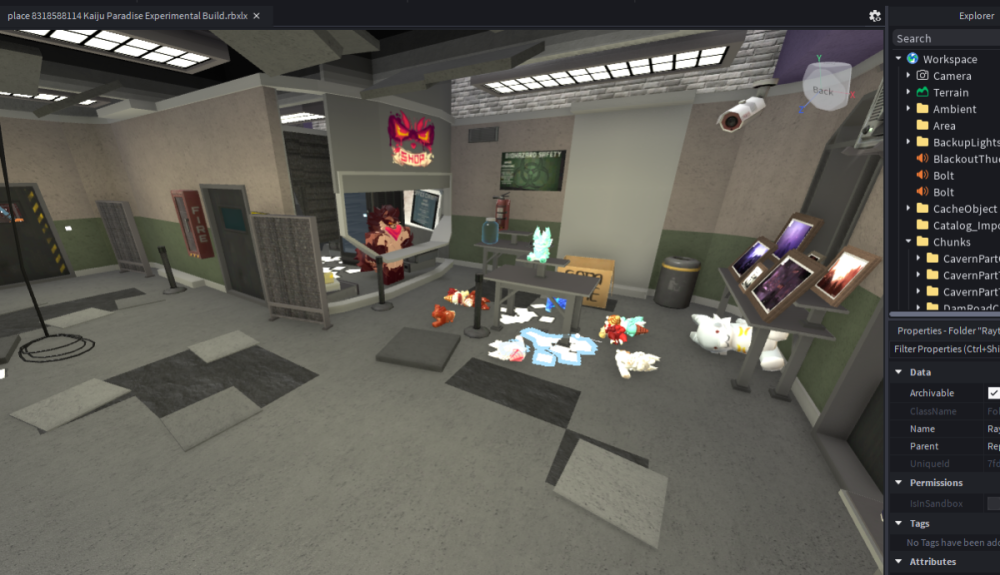
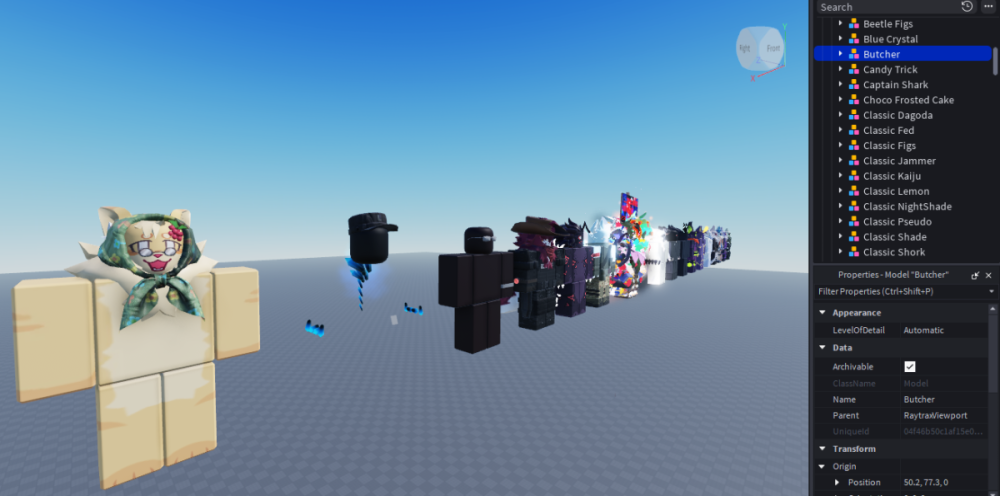
hello world I finally decided to decompile the new kaiju paradise experiment ver, thank god I got help from codex (since the previous executor I was using was discontinued) and also from shiny decompiler binary (stefanuk12's Rocult organization was removed from github idk why lol, github auto moderation is shit) which MIRACULOUSLY remained in my cold storage I'll publish the skins and map soon, as soon as I sort the skins (tomorrow) good luck lol lmao haha blub
 3 points
 -
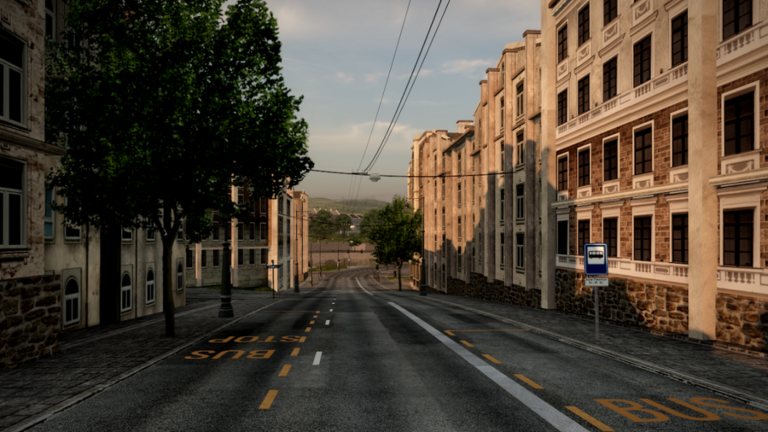
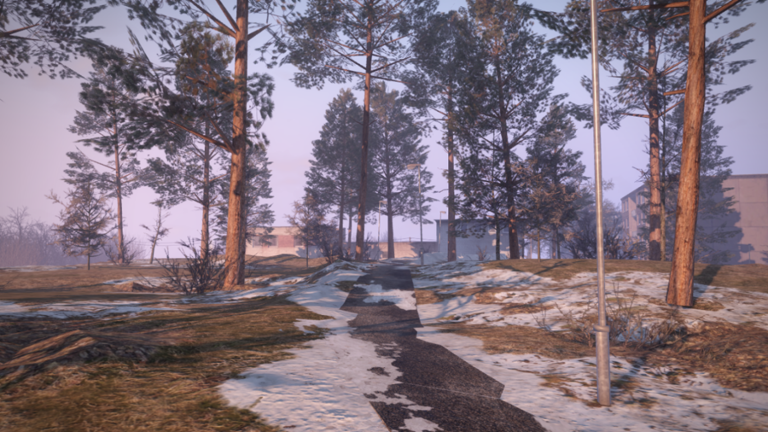
Hello,People would like to have those two Amazing city maps, Looks very good for taking photo both game got an decent ligthings, espicially Hagstol-city with an script sytems of Multiple time and weather would appreciate to get those two maps, full the second has 0 script so dont worry i've tried myself to copy those game cant really succed i got portion of the maps, not full map and missing alot of terrains both maps are beautifull, here the links and here the photo First photo section are form Hagstol-city Photorealistic maps Second photo sets is form the game simtvergiai munch more smaller maps but so good for photo, https://www.roblox.com/fr/games/13267073356/Hagstol-City https://www.roblox.com/fr/games/12794020420/simtvergiai-town
.png.a4396e6f2e8c06d4fc2285c459eaa585.png)
.webp.cdb2f47c45730f3e57b178560b977b8e.webp)

.png.dc5137310207b10a6f2fc05e8497da6e.png)
.png.c90b86688125c609c06308d599482061.png)
.webp.8cdaa65990649b584b7e9218763d17f7.webp) 3 points
3 points -
3 pointsLOOKING FOR I am looking to trade for either of the following NFG uniform sets: ◉ NFG SS-Feldgendarmerie: https://payhip.com/b/ojnGT ◉ NFG New Allgemeine-SS Uniforms: https://payhip.com/b/4jXwW ◉ NFG New Allgemeine-SS Parade Uniforms: https://payhip.com/b/sv3WF ◉ NFG Newest World Capital Germania: https://payhip.com/b/wx7ps ◉ Any NFG Waffen SS Legion / SS-Panzerdivision that has not yet been asseted: https://payhip.com/NFGInc/collection/w-ss-legions OFFERING Here are just some pics of some of the unasseted sets that I own, I have many more sets, this is just a preview: *I have many more of the new NFG and WarWare sets, including other unasseted sets from NFG, let me know what you're looking for and I might have it! If you are interested in trading, send me a message on DarkBlox. Thanks, M3 points
-
3 pointsWasp-Class Amphibious Assault Ship | ClearlyDev Marketplace some asset plz3 points
-
3 points
-
3 points2 pointsF16 (SOLOTURK) $HACKED.BY.MR.HACKER666$ STAY TUNED FOR MORE assetS --FOR SCRIPTED VERSION-- 1- LIKE THE POST 2- DOWNLOAD IT 3- SHARE THE FILE TO YOUR FRIENDS! HYPE MR.HACKER666 File Information Submitter Mr.Hacker666 Submitted 10/29/25 Category Aviation View File
 2 pointsRTS:Chasing [Tornado Chasing Game] Now, this one, I also used Dex for it, it is an upcoming tornado chasing game, it has some scripts but only local scripts. I can't guarantee it'll work fully at all, but it is the entire map, but note that I got this from the Demo they have open on ROBLOX, and there is more to come to their game. File Information Submitter HarryLarry254 Submitted 04/07/25 Category Maps View File
 2 pointsit has some really nice and high quality assets if anyone wants them. the server is called "Danilov, Bresonya" and it should be active most of the time and should still be on as i post this request. i only need the gear and other stuff so no scripts needed. theres probably alot more stuff i didnt document like the map and other gear but it's still worth it. I ATTACHED IMAGES OF RUSSIAN AND UKRAINIAN GEAR / UNIFORMS (they look way better when worn)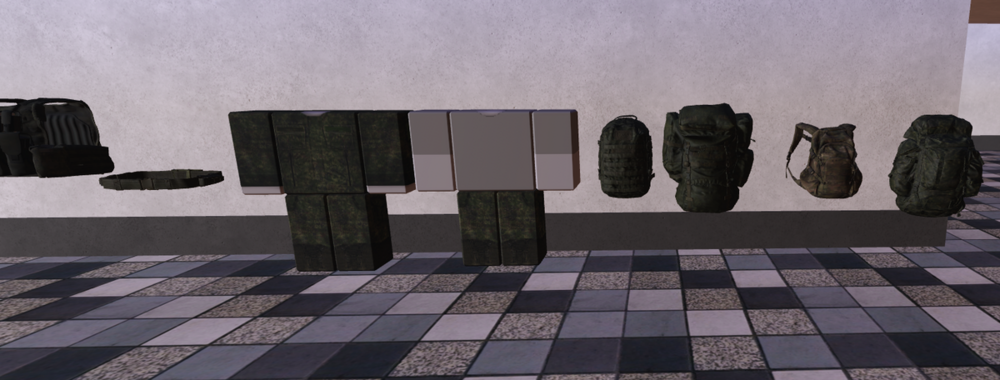
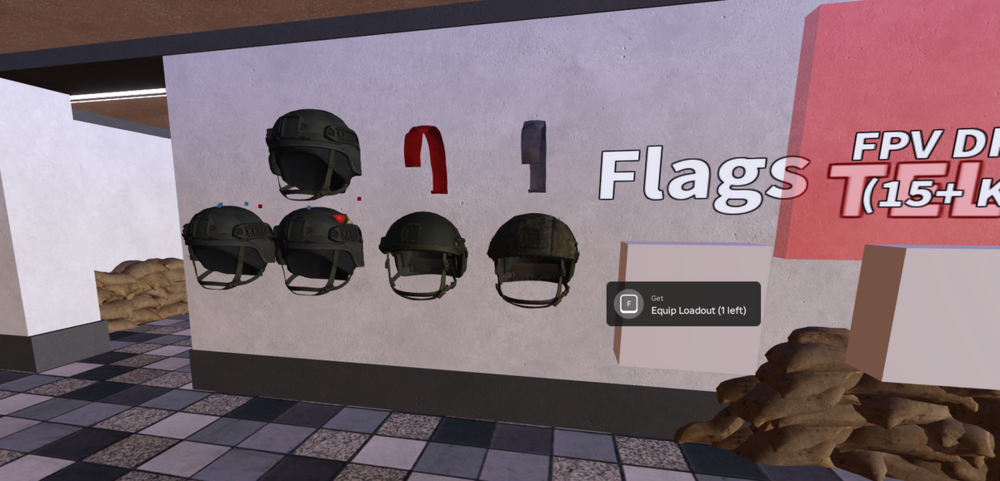
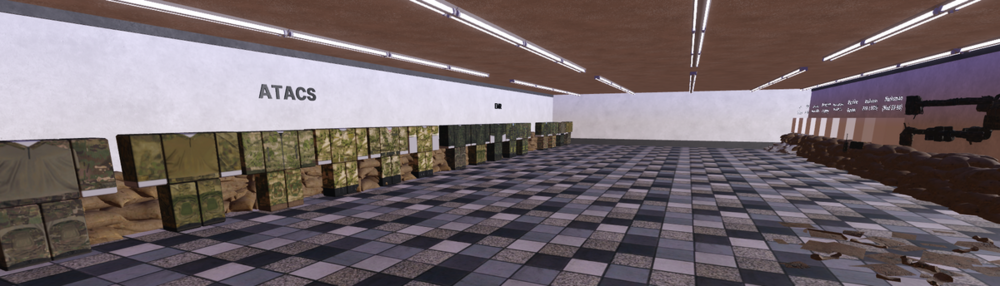
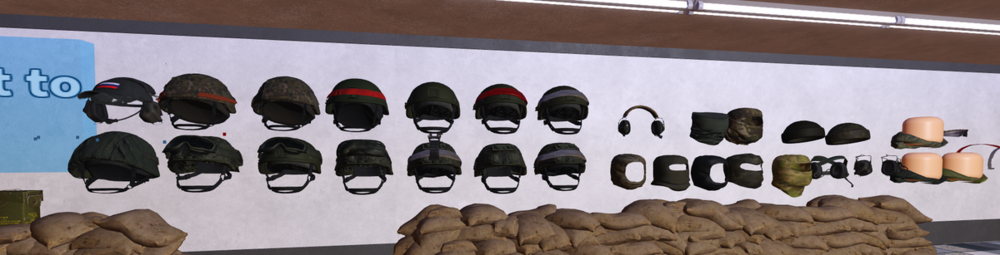
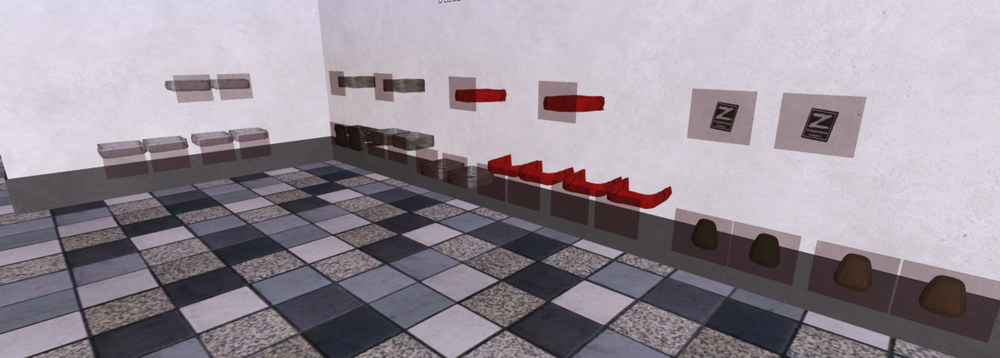
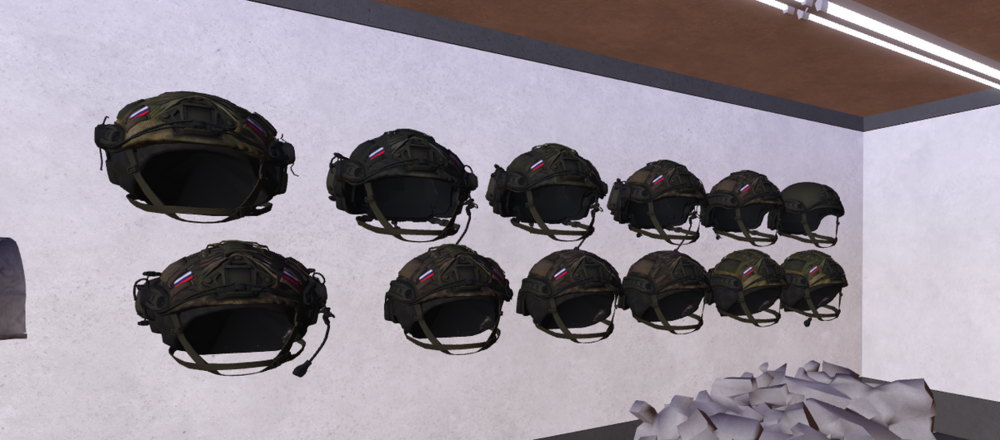
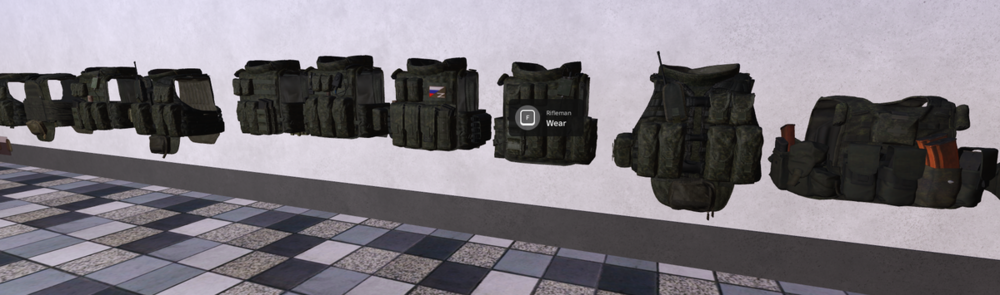
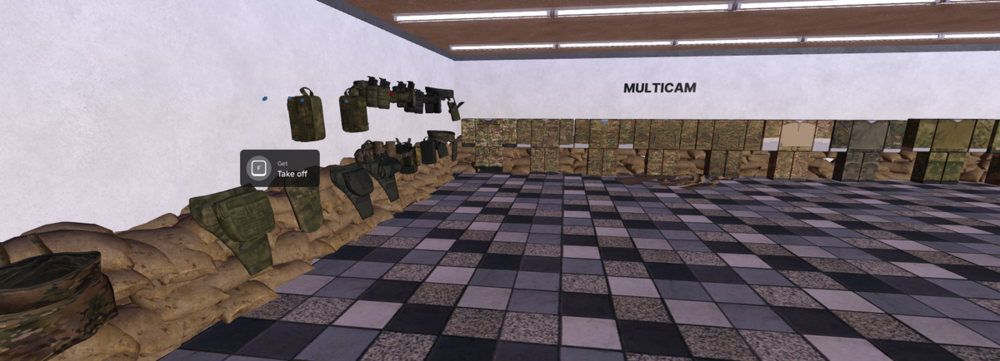
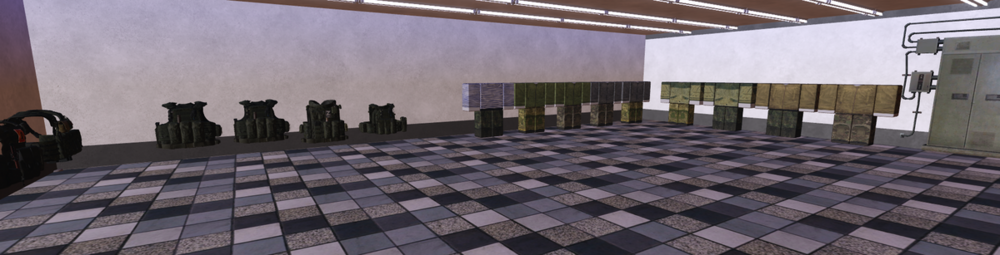
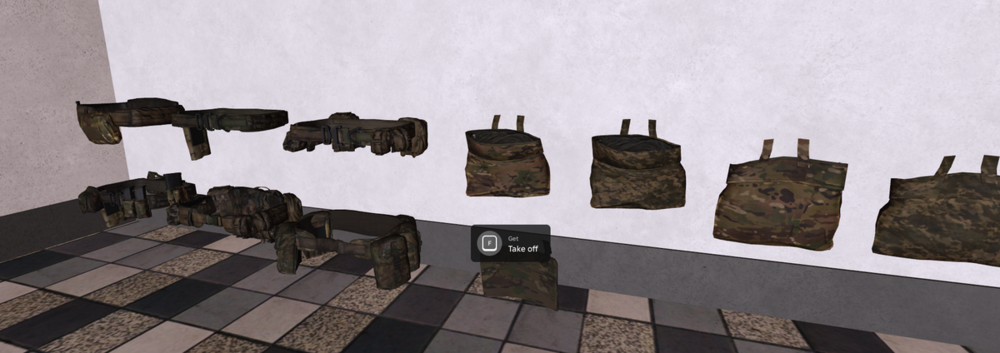
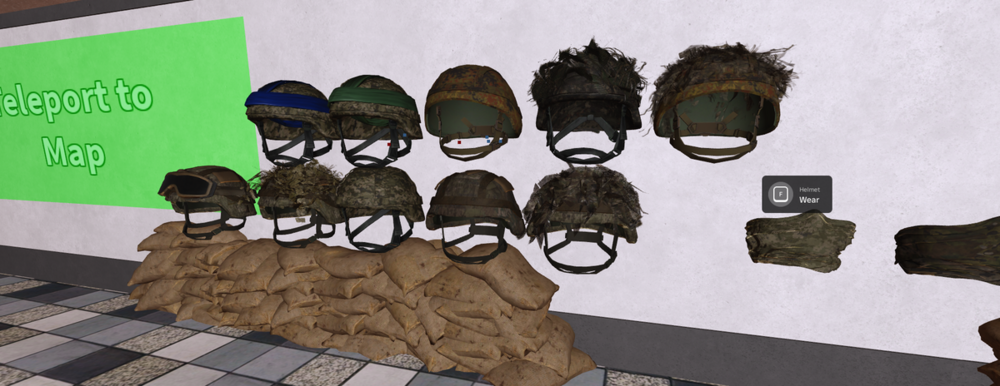
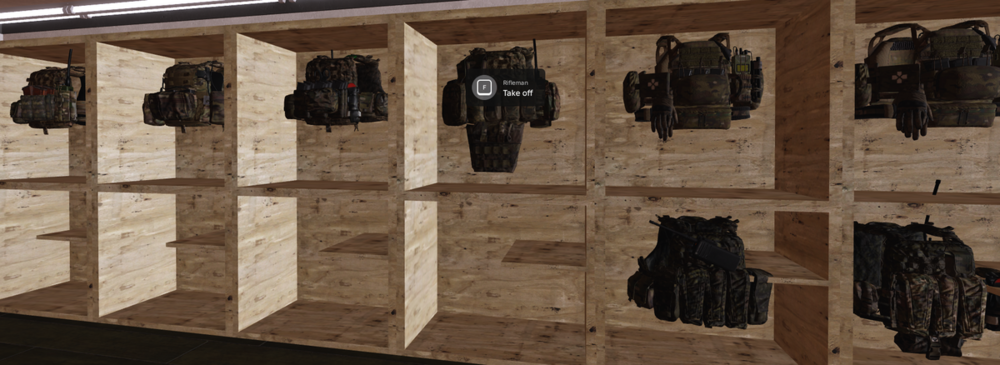
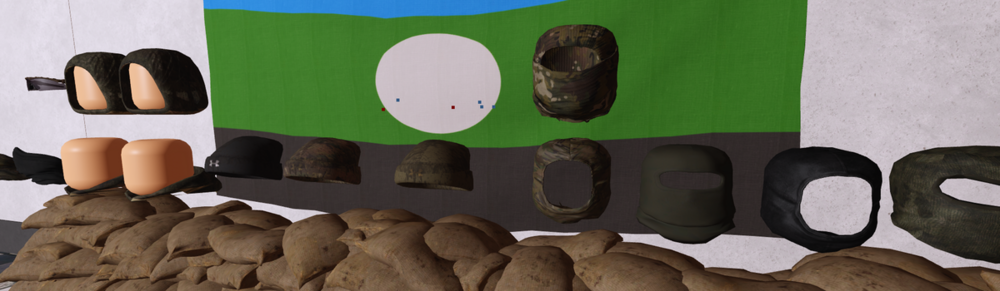
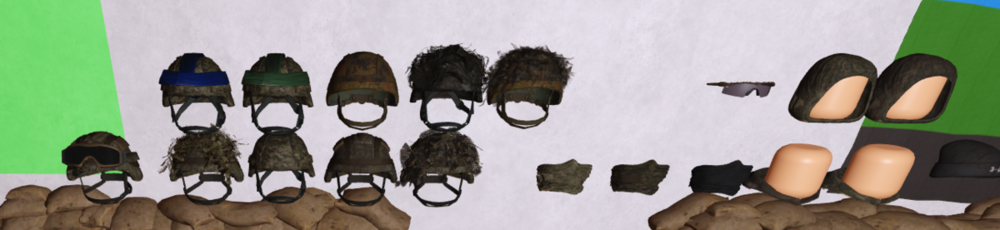
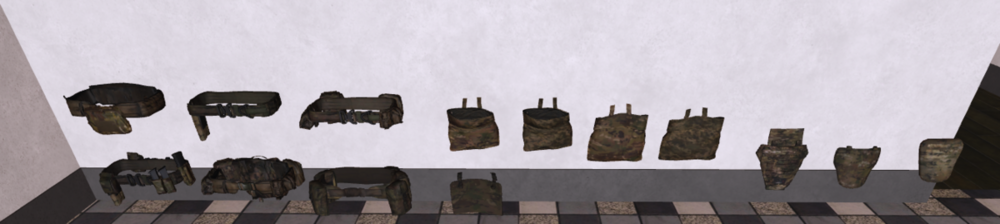
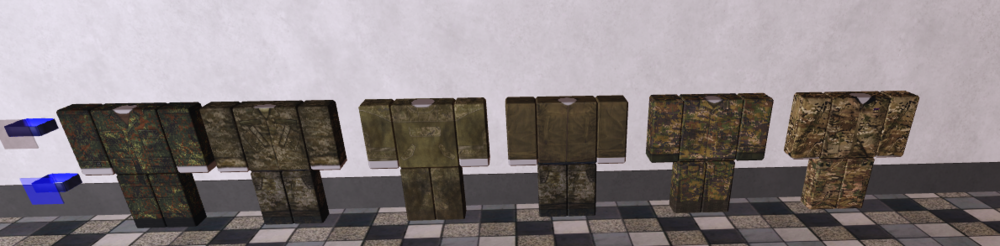
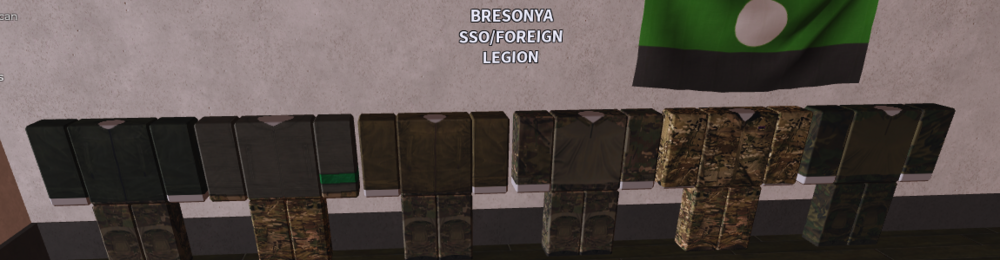
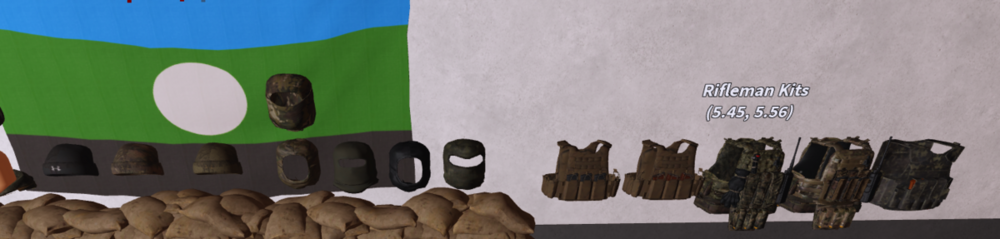

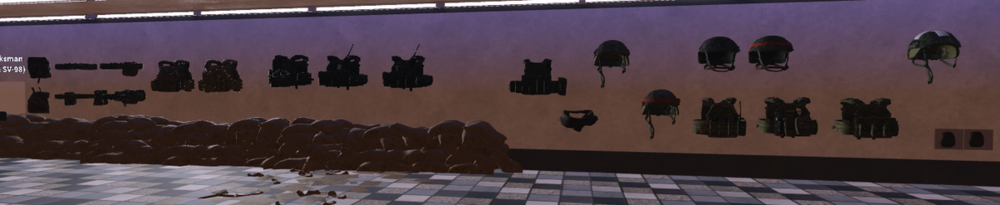 2 points2 pointsZero day bcc studio remake zero day bcc studio remake asset lol the doors are bad File Information Submitter maksimka Submitted 02/20/26 Category Scripted View File
 2 points2 pointsCould we get more medieval assets? From what I've seen, this platform offers almost everything but lacks medieval stuff.2 pointsPlace_7131355525_Thunder Scientific Corporation _05-08-2026_23-07-03.rbxlxheres some new area dex
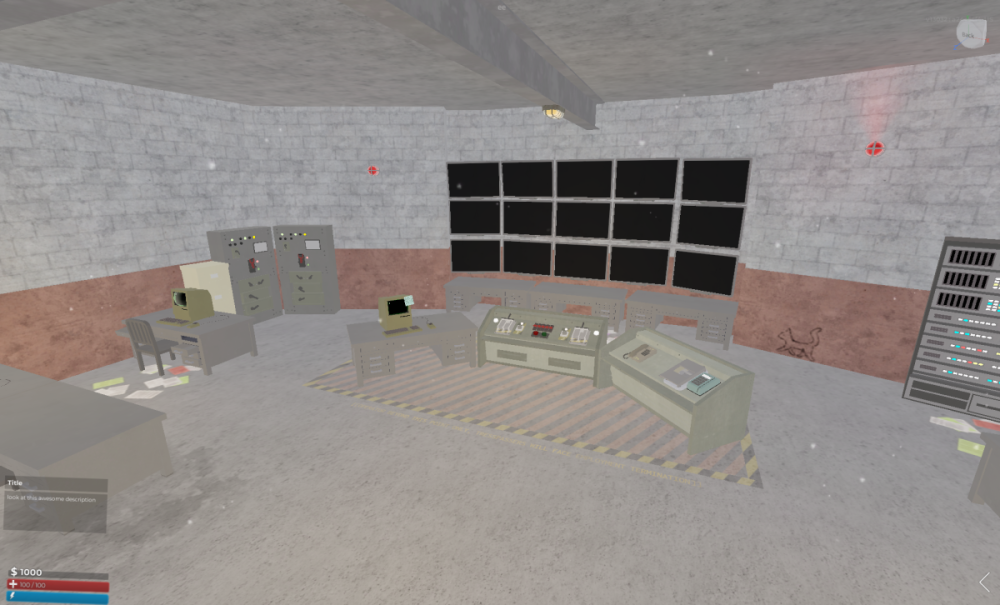 2 pointsUpdate: So I did find a legit copy of TSC that was obviously Save Instanced into multiple parts, but that's about all I have at this point. I hate gatekeeping, but I was forced to not publicly post it, so just dm me. I really feel like we could get onto the right track here with obtaining the legendary TSC 2026 file...2 pointsSome Urban Studios Products (roughly a 40-60 USD asset) they decided to ban me for no fucking reason and Nobody kept delaying my unban so I decided to asset their shit out of retaliation, some of these I purchased as others were handed to me by users who would like to stay anonymous so Fuck Mr Nobody for letting the ban happen in the first place and fuck Daniel (The CSGWorks owner) for making false allegations against me leading to my ban also this should include some of the CSG Cars and the Framework, if they're not included in this pack lmk File Information Submitter Niroutley Submitted 05/02/26 Category Systems View File
 2 points2 points2 pointsLOOKING FOR Either of the following: ◉ NFG Standard Army Engineer set: https://payhip.com/b/FcPrJ ◉ NFG Standard Army Feldgendarmerie: https://payhip.com/b/BTntU ◉ Any NFG W.SS Legion / SS-Panzerdivision that has not yet been asseted: https://payhip.com/NFGInc/collection/w-ss-legions ◉ NFG Nazi Hamburg: https://payhip.com/b/E5wCZ ◉ NFG Newest World Capital Germania: https://payhip.com/b/wx7ps ◉ NFG Nazi Reichstag Chamber: https://payhip.com/b/Ky3Mm TRADING Assets below have not yet been asseted on DarkBlox and so they are unasseted. I am offering the following unasseted sets: ◉ NFG 9th SS-Panzerdivision, Hohenstaufen: https://payhip.com/b/oEqV0 ◉ NFG Standard Army Gebirgsjäger set: https://payhip.com/b/7ZJEn ◉ WARWARE Deutsches Heer, 1943: https://warware.org/asset/04f681fd-be53-4400-ab09-76caa5a842be ◉ WARWARE Protection Squadron Planned Uniforms, 1946: [link unavailable, please see final image] I have a lot more so feel free to ask me if what you want is not on the list above. **IF YOU WISH TO TRADE YOU MAY MESSAGE ME ON DARKBLOX, I AM NOT ACCEPTING DISCORD REQUESTS AT THIS TIME. Below are some previews of my sets2 points2 pointsCan someone copy this map or the game please because just look at the map it is Survive Homelander https://www.roblox.com/games/134225461562780/Survive-Homelander2 points2 pointshttps://create.roblox.com/store/asset/111292443702616/MegMo-Animator Someone please add this plugin its a new animator plugin that has so many features its really cool i really want it but i have no money.2 points2 points2 pointsthats a copy of my server, heres the REAL deal https://discord.gg/AqnhfW5Fg2 points2 pointsBlox Fruit (Fully Scripted) Blox Fruits game fully scripted Информация о файле Автор bxbxjfhjfbxv Добавлено 04/19/26 Категория Anime Просмотреть файл
 2 points2 pointshttps://www.roblox.com/games/124441046209609/Project-Ventura#!/game-instances It would be nice if we could get arrest system, gun system, etc for our games A game about Roleplay (Strict?) in LA, California State. Hope you will get the assets, and more.2 points2 points2 pointshttps://clearlydev.com/product/royal-marines-amphibious-assault-pack https://clearlydev.com/product/rmb-chivenor https://clearlydev.com/product/advanced-cam-cream-camo-paint-system https://clearlydev.com/product/hawker-siddeley-nimrod https://clearlydev.com/product/hawk-t-1 https://clearlydev.com/product/avro-vulcan https://clearlydev.com/product/eurofighter-pilot-gear-kit https://clearlydev.com/product/english-electric-lightning-f-6 https://clearlydev.com/product/harrier-gr-7 https://clearlydev.com/product/f-35-pilot-gear-kit-v2 https://clearlydev.com/product/panavia-tornado-gr-1 https://clearlydev.com/product/airbus-a400m-atlas-2 https://clearlydev.com/product/advanced-animations-panel Ong js asset all of SFZ42 points2 points2 pointsCan someone get and release this map? https://www.roblox.com/games/16545924458/Washington-District-of-Columbia#!/about
 2 points2 pointsCopy this game fully scripted https://www.roblox.com/pt/games/124441046209609/UPDATE-Project-Ventura#ropro-quick-play2 points2 points2 pointsi think i have full decompile files on other pc but i can give the files in summer2 pointsAs someone who works with greenville development, I wouldn't advise against it. Unless you wanna pay 10,000 dollars in fines for violating a copyright go right ahead..2 points2 pointslets just be greatful and get the map pls2 points2 pointsHere https://www.mediafire.com/file/zxmk2shjiznc40l/place+99843144584993+DAY+7+Dorset+County.rbxlx/file2 points2 pointsAxle valley railway 2.0 fuck you noah fucking weirdo File Information Submitter West Midlands Roblox Submitted 10/12/25 Category Scripted View File
 2 points2 points2 pointsdecompile this pls https://www.roblox.com/games/5130598377/HALLOWEEN-A-Universal-Time-5-4 and sent it to my discord my username there is rena.andou. , if its good enought ill pay ya after getting it gave2 points2 pointsHalf working ventura scripts Half working btw File Information Submitter vinc Submitted 10/01/25 Category Maps View File
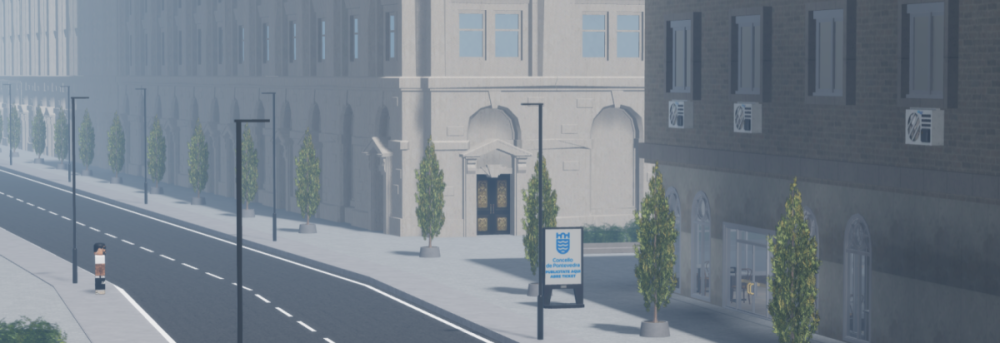
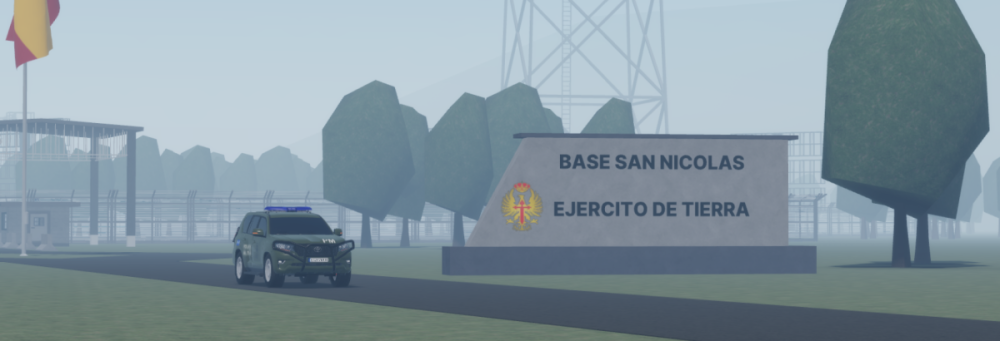
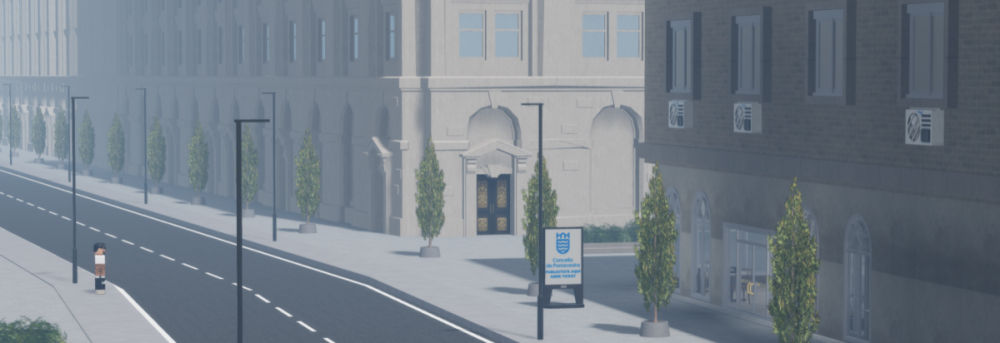
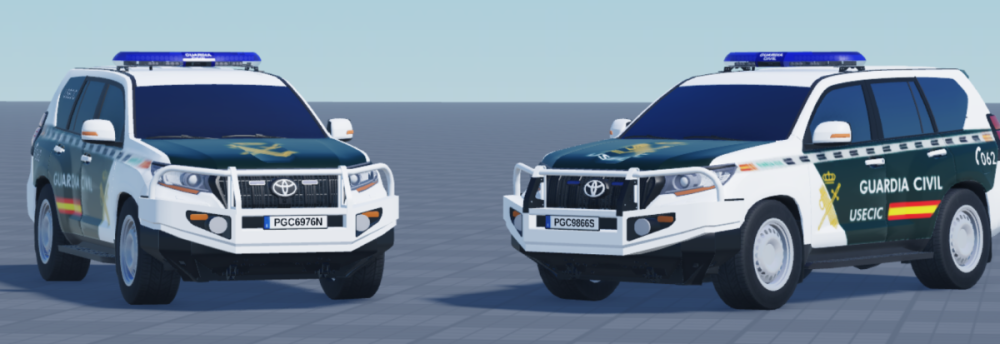
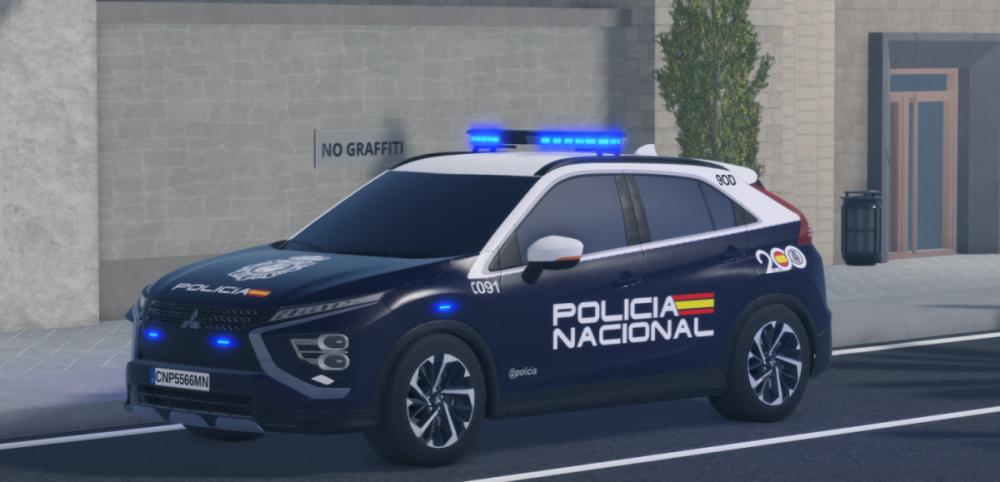
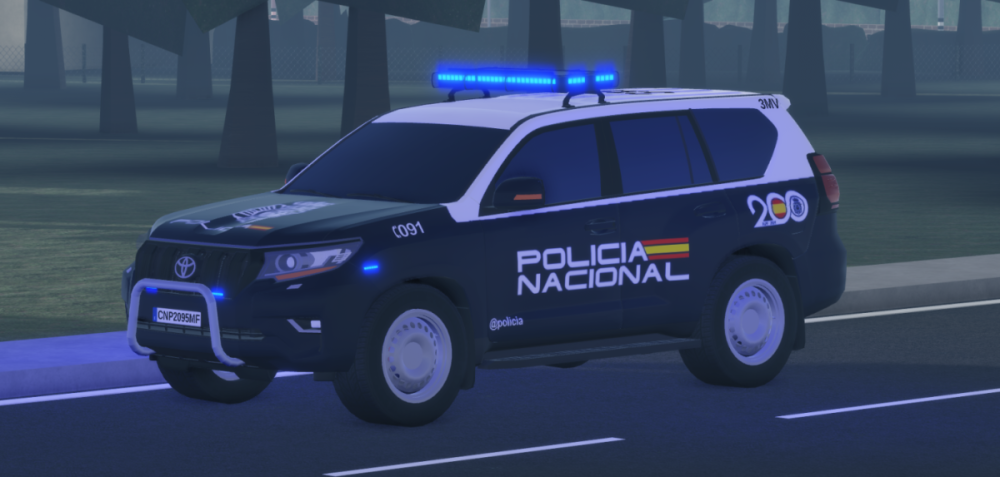
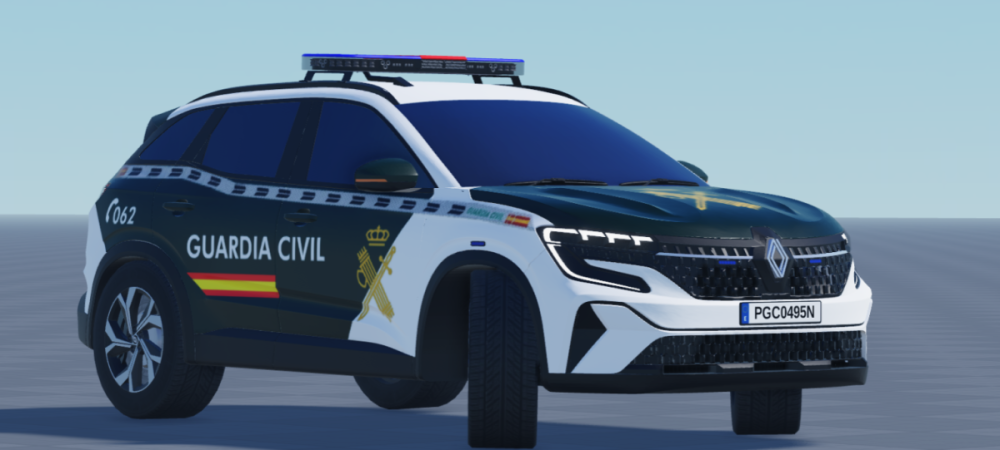
 2 points2 points2 pointsWould be great if anyone could get a game file of [CL] Facility Roleplay Thank you!2 points2 points2 pointsespañol: algunas imagenes del juego english: some images of the game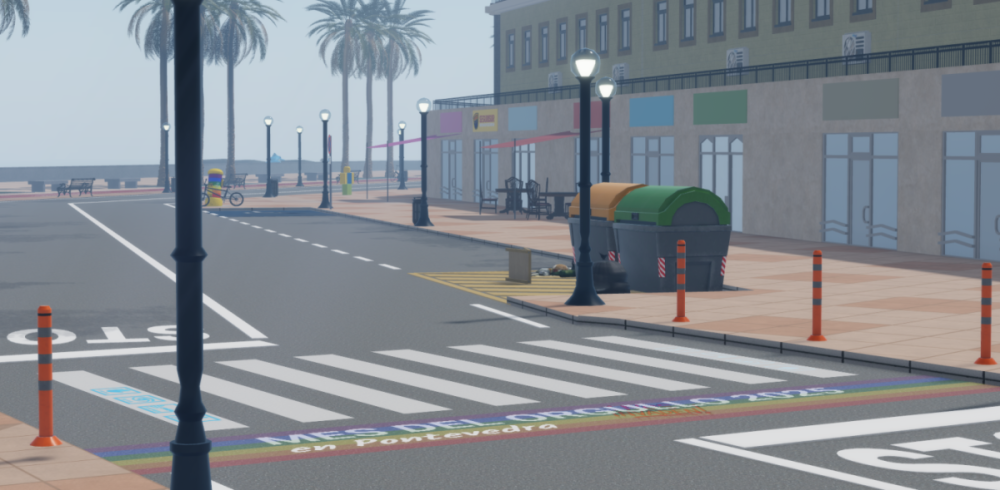


 2 points2 pointsDoes anyone have Norman county fire and rescue fully script? link to game: https://www.roblox.com/games/82979069958983/Norman-County-Fire-Rescue2 points








.thumb.jpeg.9b92142b08b4f6526520a7f0a4578679.jpeg)
.thumb.jpg.0ad93973b776c4a3095ba872824ed0d6.jpg)





.thumb.png.5d05ae2b91138b8899d377fb23128cf7.png)















Important Information
By continuing to use this site, you agree to our Terms of Use and Privacy Policy. We have placed cookies on your device to help make this website better. You can adjust your cookie settings, otherwise we'll assume you're okay to continue.
Account
Navigation
Search
Configure browser push notifications
Chrome (Android)
- Tap the lock icon next to the address bar.
- Tap Permissions → Notifications.
- Adjust your preference.
Chrome (Desktop)
- Click the padlock icon in the address bar.
- Select Site settings.
- Find Notifications and adjust your preference.
Safari (iOS 16.4+)
- Ensure the site is installed via Add to Home Screen.
- Open Settings App → Notifications.
- Find your app name and adjust your preference.
Safari (macOS)
- Go to Safari → Preferences.
- Click the Websites tab.
- Select Notifications in the sidebar.
- Find this website and adjust your preference.
Edge (Android)
- Tap the lock icon next to the address bar.
- Tap Permissions.
- Find Notifications and adjust your preference.
Edge (Desktop)
- Click the padlock icon in the address bar.
- Click Permissions for this site.
- Find Notifications and adjust your preference.
Firefox (Android)
- Go to Settings → Site permissions.
- Tap Notifications.
- Find this site in the list and adjust your preference.
Firefox (Desktop)
- Open Firefox Settings.
- Search for Notifications.
- Find this site in the list and adjust your preference.