Do not create multi-accounts, you will be blocked!
If the site is blocked, use our mirror:
dbx.st
More stable than the .net version. We are moving everything to dbx.st soon. The .net domain will remain as a backup.
Programs
1 file
-
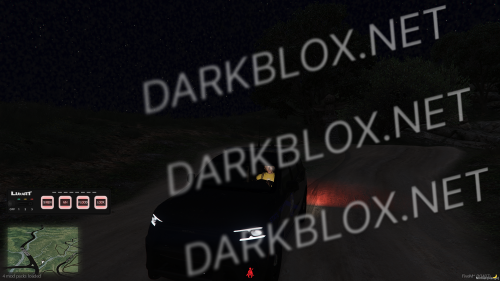
LVC Interface V2 is a modern user interface overhaul for Luxart Vehicle Control (LVC), designed to provide a cleaner, more immersive experience for emergency service roleplay. The interface has been redesigned with usability and readability in mind while maintaining full compatibility with LVC's functionality.
Whether you're a police officer, firefighter, EMS, or any other emergency responder, LVC Interface V2 delivers a polished look that fits seamlessly into serious roleplay servers.
Features
🎨 Modern Interface
Clean, professional design.
Improved readability.
Streamlined layout.
Optimized for roleplay immersion.
⚡ Performance Friendly
Lightweight UI.
Minimal performance impact.
Smooth animations and transitions.
🚔 Full LVC Compatibility
Works with Luxart Vehicle Control.
Maintains all existing functionality.
No changes to core LVC features.
🖥️ Responsive Design
Scales well across different screen resolutions.
Clean appearance on both standard and ultrawide displays.
🔧 Easy Installation
Drag and drop into your resources folder.
Replace your existing interface files if required.
Restart the resource or server.
Configuration
Configuration options may vary depending on your version of Luxart Vehicle Control.
If configurable files are included:
Open the resource folder.
Edit the provided configuration files using your preferred text editor.
Save your changes.
Restart the resource.
Compatibility
✔ FiveM
✔ Luxart Vehicle Control (LVC)
✔ Framework Independent
✔ Multiplayer Compatible
✔ Optimized for Serious Roleplay Servers
- Free
- 19 Downloads
Featured Files
-
- 575 Downloads
- 2 Comments
-
- 436 Downloads
- 15 Comments
-
- 3126 Downloads
- 93 Comments
-
- 1129 Downloads
- 1 Comments
-
- 5080 Downloads
- 101 Comments


.thumb.jpg.a237428f121dee15540ca43c17e88147.jpg)

.thumb.webp.aa2e1d8010bcf13356419c4b2a16c392.webp)



File Reviews
-
South Central III
ts was bunz
-
ECHO FUEL (CRACKED)
the rbxm is unopenable can you fix that ?
-
LT Site B-16 Open Source (OLD AND SAVEINSTANCED)
what is this shit
-
Zombie AI V.3/System
Mid, maybe i did something wrong, but they dont attack or target you, they stand there or just wander randomly. VFX decent, SFX decent, some lag when they get an aura or something but just mid overall
-
MM2, Fully Scripted.
"For legal purposes I do not claim Ownership of this game nor do I the asseting/distribution of this Asset."
Exactly How described: Asseted/Asset