

Forest Menu UI V1 🌲🎮
Bring your Roblox game to life with Forest Menu UI V1, a beautifully crafted and fully animated main menu GUI! Main menus are the first impression your players get, so make it count with this sleek, professional, and immersive design.
Features & Details ✨
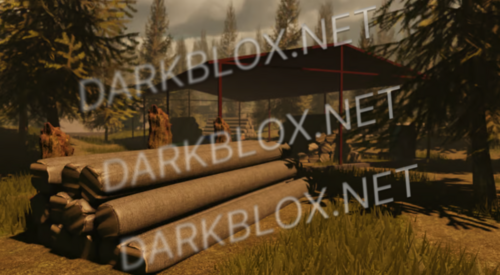
• Background 🌌: A serene forest background with soft, subtle animations to create a calming and immersive atmosphere for your players.
• Game Title Section 🏷️: A customizable space for your game’s name and tagline. This is the first thing players will see, so make it memorable!
• Animated Buttons 🎥:
• Play ▶️: Launch the game with a smooth, glowing hover animation that grabs the player’s attention.
• Store 🛒: Directs players to your game’s store or shop. Perfect for monetizing your game or showcasing in-game items.
• Settings ⚙️: Allows players to adjust audio, graphics, and gameplay options. Comes with a clean, interactive toggle effect.
• Description Panels 📝: Fully customizable text boxes for displaying news, updates, or credits about your game.
Why Use This GUI? 🤔
• First Impressions Matter: A polished menu is the first thing your players will see, and this UI sets the tone for a high-quality experience.
• Lightweight & Efficient: At only 14.20 KB, it won’t slow down your game.
• Customizable: Easily edit text, buttons, and animations to fit your game’s theme.
How to Get the Most Out of It 💡
• Use this GUI for adventure games, simulators, or any Roblox game that needs a professional touch.
• Pair it with custom sound effects and music for an even more immersive experience.
If you enjoy this GUI, please leave us an honest review! ⭐ Your feedback helps us create even better content for the community.
Transform your game’s main menu into something unforgettable! We will be releasing updates soon if we get over 10 reviews on this file. 🚀
What's New in Version 12/25/24 08:42 AM
Released
No changelog available for this version.
.thumb.png.e31d0f29762a80713ae9c1ed024f3879.png)

.thumb.png.3744621d85b8fbb3a0a47cd068acbfbe.png)


Recommended Comments
Create an account or sign in to comment