

Features
Full optimize
Easy to use
Highly configurable
Cool Ui
Cardealer Job
NPC gallery
Stock system
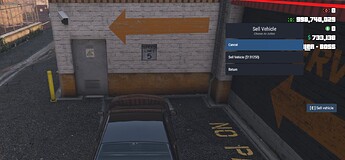
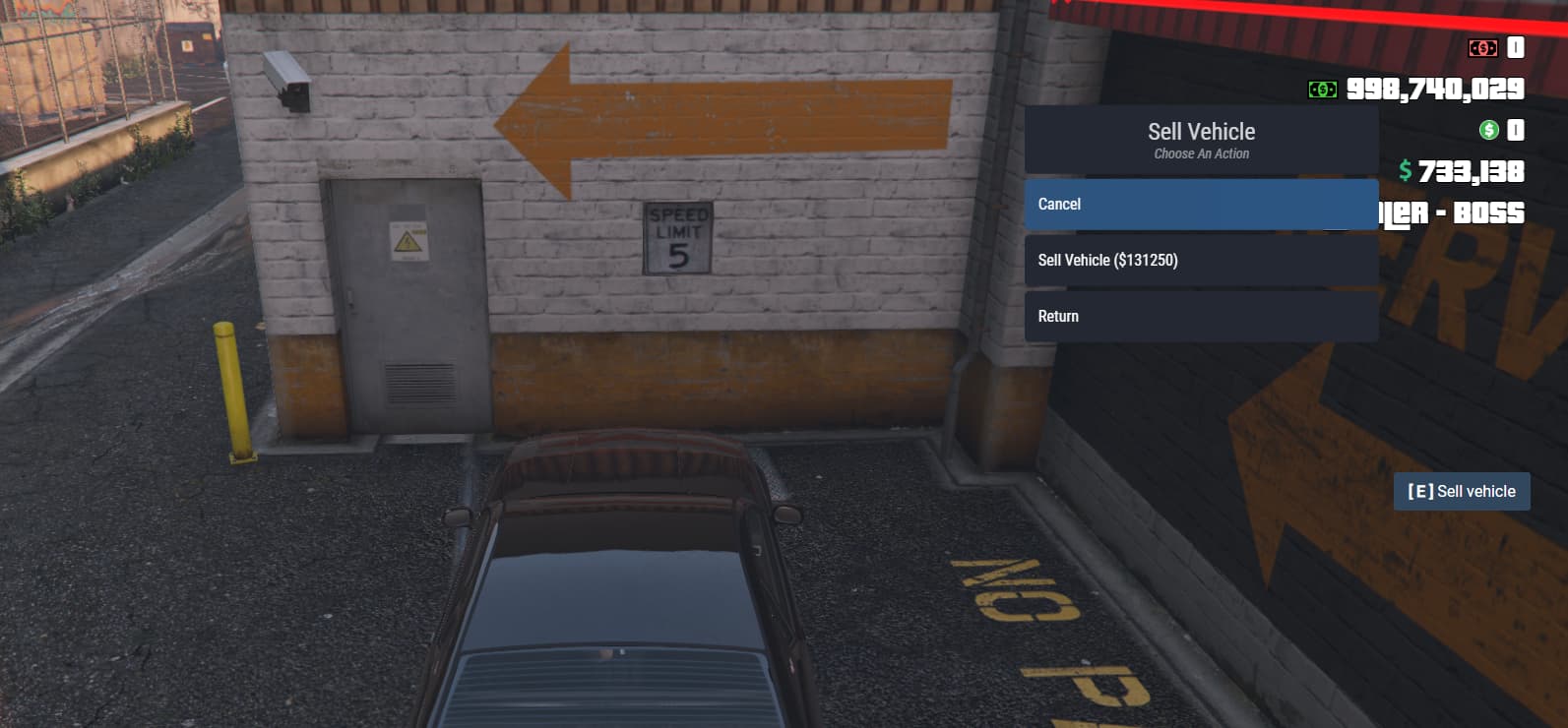
Purchased vehicles can be sold back to the dealership (75% of the vehicle’s price)
Test drive
Category and class system (you can edit classes and categories as you want)
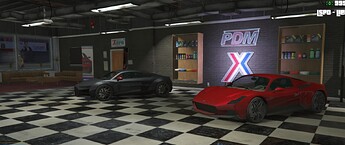
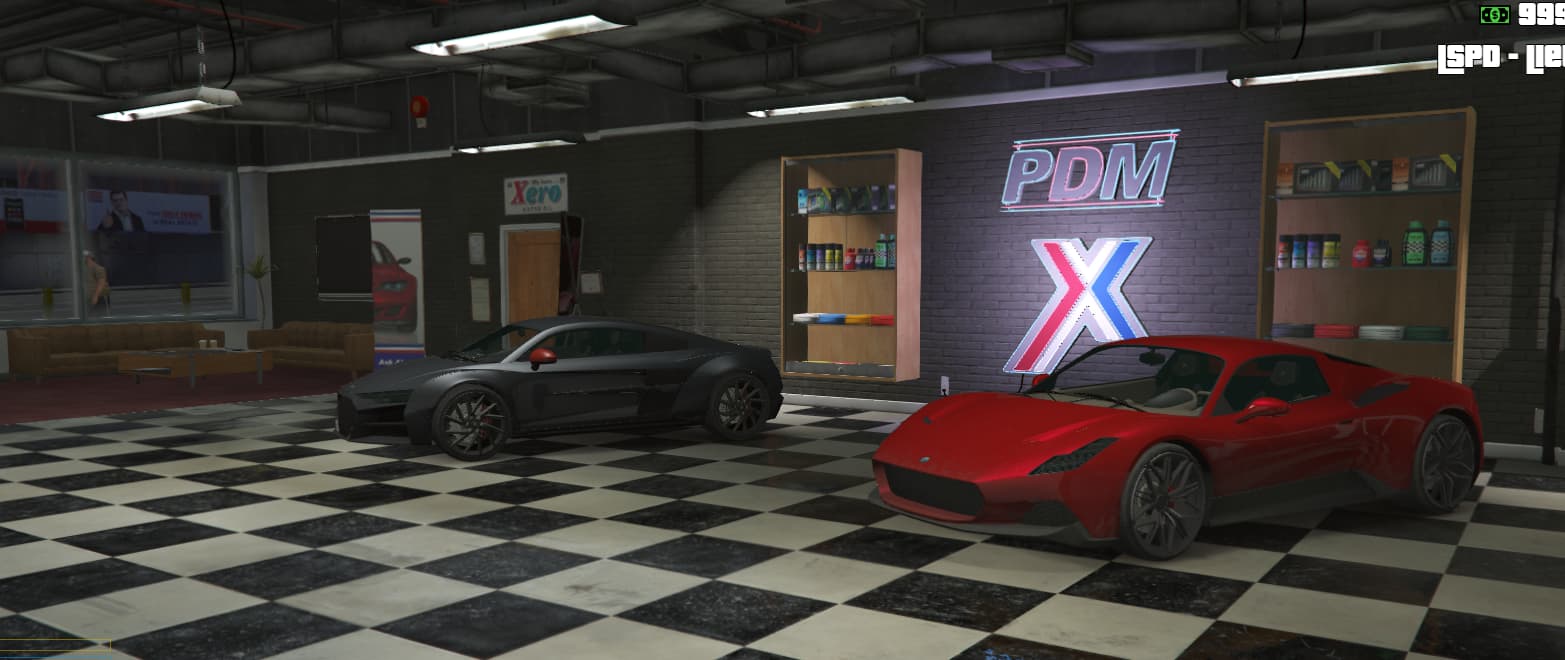
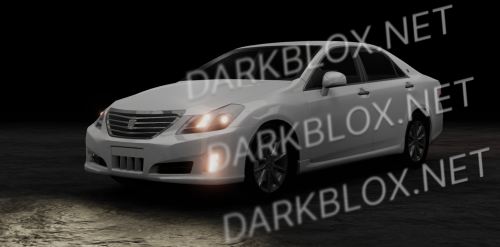
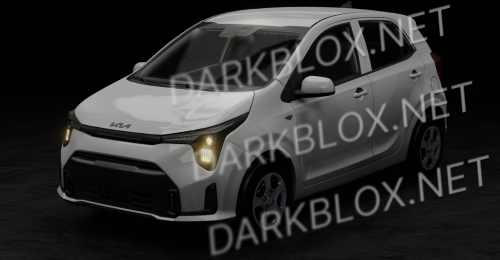
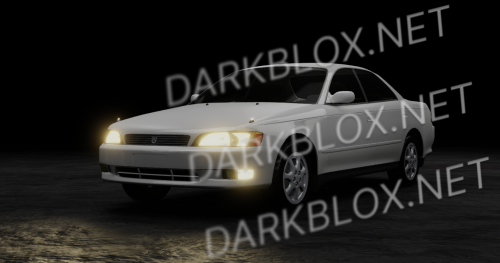
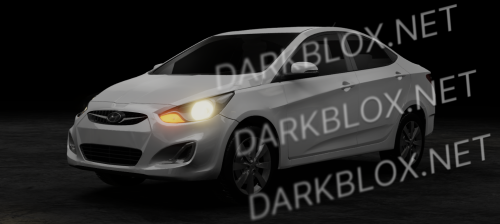
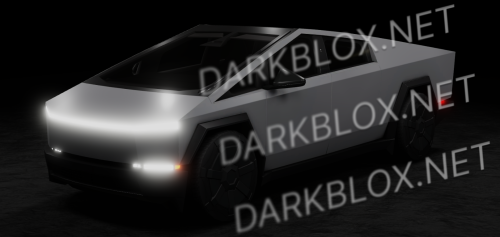
Showroom vehicle in gallery
Stock system
Each vehicle has its own stock number
If someone sells their vehicle back to the car dealar, the vehicle’s stock is added back
New stocks can be added with the admin command
NPC Gallery system
Players cannot purchase vehicles from NPC if there is a gallery employee in the game
Gallery boss can disable NPC if wants
No one can buy vehicles while the NPC is disable (Players can still view vehicles from the menu)
If a player buys a vehicle from an NPC, 10% of the vehicle’s price will be sent to the gallery vault (value can be changed from config)
Job System
Gallery employees buy the car 20% cheaper (value can be changed from config)
The vehicles they buy are added to the gallery sale stock, A maximum of 2 vehicles can be added to the stock (value can be changed from config)
Feature to return vehicles in gallery sale stock
Employees cannot sell the vehicle above its original price
Boss menu
Automatic billing system (you can change the codes of the billing system)
Test Drive
Test drive duration and price can be changed in config
Players cannot see players who are on test drive
Requirements
ESX or QB
MySQL or oxmysql
Note: also this script is compatible with ox_lib
.thumb.jpg.37fa7232753b9f673a4ac51692b1d5ea.jpg)


Recommended Comments
Create an account or sign in to comment