Registration is limited to Google Gmail & MailRU & Yahoo & Yandex email addresses.
Do not create multi-accounts, you will be blocked!

Cow
Active Member
-
Joined
-
Last visited
Everything posted by Cow
-
Survival Horror Inventory Props Pack Meshparts Only A large set of props for survival horror games or other projects File Information Submitter Cow Submitted 12/23/24 Category Models & Mesh View File
-
-
2020 Bugatti Divo GPI File Information Submitter [[Template core/front/global/userLink is throwing an error. This theme may be out of date. Run the support tool in the AdminCP to restore the default theme.]] Submitted 12/22/24 Category Vehicles View File

-
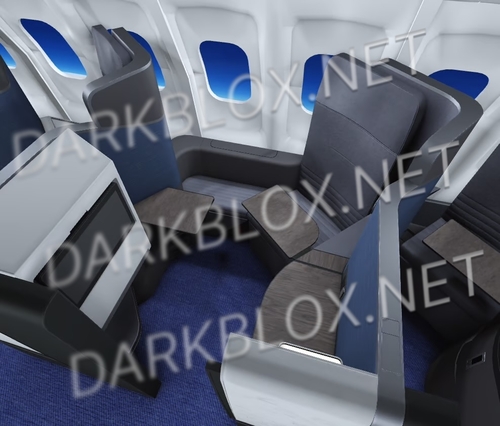 This is a functional cracked product that allows you to bypass their user whitelist. Here you go 😉Free
 -
Buisness Seat Cracked (SkyHanger) This is a functional cracked product that allows you to bypass their user whitelist. Here you go 😉 File Information Submitter [[Template core/front/global/userLink is throwing an error. This theme may be out of date. Run the support tool in the AdminCP to restore the default theme.]] Submitted 12/22/24 Category Maps & Other View File
-
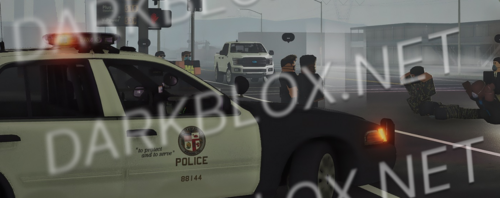 Unsure if it’s scripted. EMS, FIRE, POLICE roleplay. Please mention me in the comments if it’s not scripted. Comes with vehicles pre-scripted departments buildings civilian outlets weapons/tools and moreFree
 -
 Please report files that are broken or misleading. I’ve said this multiple times and it’s the only way a staff member can get to it. Upon submitting a report it will require the staff member to view the file and ensure everything works. If we get 3 reports on one file about broken or misleading the file will automatically be removed.
 -
@daniel kirkpatrick please add relative pictures
-
.thumb.png.ef3c86484ca3583be7ac0c3fc3f38d39.png) whens the next one coming
whens the next one coming -
If you were unable to find it by searching it then you most likely need to request it in our requests forum.
-
Heres some guidance on how to get hr UV map via blender. Create Your Own UV Maps To create your own UV maps, you’ll need a 3D modeling program like Blender (free) or 3ds Max (paid). Here’s a step-by-step guide using Blender: 1. Download and Install Blender • Go to the site listed below. blender.orgblender.org - Home of the Blender project - Free and Open...The Freedom to Create ^ download the latest version. 2. Import the Model • Ensure you have the Zerotech 737 model in a compatible file format like .fbx, .obj, or .blend. • In Blender, go to File > Import and select the appropriate file format to load your model. 3. Enter UV Editing Mode • Once the model is loaded: • Select the object. • Switch to UV Editing mode by clicking on the UV Editing workspace tab at the top of the Blender interface. 4. Unwrap the Model • Select the faces of the model you want to map. • Press Tab to go into Edit Mode. • Use A to select all the faces of the model. • Unwrap the model: • Press U and select an unwrap method. Common methods are: • Smart UV Project: Good for beginners as it automatically generates UV maps. • Unwrap: Requires marking seams to control the UV layout better. • Project from View: Flattens the model based on the current camera view. • A UV map will appear in the left-hand window showing how the 3D model is laid out in 2D space. 5. Adjust the UV Map • Use the tools in Blender to adjust the UV islands to optimize the layout for texturing. • Scale, move, or rotate islands to maximize texture space and minimize stretching. 6. Export the UV Map • Once satisfied with the UV layout: • Go to UV > Export UV Layout in the UV Editing window. • Save the layout as an image file (e.g., .png) for use in your texturing software. 7. Apply Textures • Use the exported UV map to create custom textures in an image editing program like Photoshop or GIMP. • Apply these textures back in Blender or in Roblox Studio to see the final result. 8. Import to Roblox • Export the textured model from Blender in a compatible format (like .fbx or .obj). • Import it into Roblox Studio, ensuring that the textures are applied correctly.
-
-
 Update reviewed and approved!
 -
Mark me as helpful if you found this helpful!
-
List by: Oceanus Below is a list of popular Roblox executors for Windows and iOS, along with their official download links. Executors 1. Fluxus Official V647 (32/64 BIT) Download 2. Delta Official V647 Download 3. Delta Scripthub V647 (iOS) Download 4. Cryptic Official V647 (Newest) Download 5. Codex Official V647 Download 6. ArceusX V647 (1.4.4) Download 7. Vega X V647 Download 8. Synapse X Remake Download 9. Atlantis (100% Free, Limited Script Compatibility) Download 10. HazeV2 Download 11. Taxus Download 12. Nylith Download 13. Astral Executor Download 14. Rezware Download 15. Paradox Executor Download Windows Executors • Download LootDest Executors Main Links • Executor Folder • LootDest Links Disclaimer DarkBlox and I are not responsible for any issues or consequences that may arise from using these executors. Use them at your own risk and ensure compliance with Roblox’s Terms of Service.
-
If you found my answer helpful please click helpful! and if you have any other questions, please let me know
-
If SaveInstance isn’t working, try using this script: local SaveInstance = game:GetService("InsertService") -- Dex SaveInstance Function SaveInstance:SaveAs("game.rbxm") -- Change "game.rbxm" to your preferred file nameSteps to use: 1. Inject the script into the game using a trusted executor (e.g., Synapse X or Script Ware). 2. The script will save the entire game or model to a .rbxm file. But first… Make sure your executor supports file-saving operations. Some games have protections that may block this process. If this doesn’t work, you may need an updated Dex tool or alternative scripts.
-
 Thanks for sharing
 -
-
-
-
-
-
.thumb.gif.ab9b6e8e8b967c82485d98266280e6a9.gif) Please upload relative pictures 😊
Please upload relative pictures 😊 -
 Damn bro saw and bro delivered 🔥